
Using Value Descriptors with Templates
The ultimate goal of Value Descriptors is to provide data to your templates. Let's assume we want to create a template-based instantiation action which creates a new instance of entity type Person with the same firstName property as the currently logged-in user's name. Additionally, we want the created property to be assigned with the current date. We have Value Descriptors just for that - the UserName descriptor, which gets the user name in context of the current session, and the Now descriptor, which gets the current date.
Prerequisites
This tutorial is based on the Demo Cartridge, where the
anythingproperty of Person entity has been renamed tocreated.
- You have a
person-modelin your Tribefire instance, declaring thePersonentity type with afirstName(string) andcreated(date) property. person-modelis added as a dependency to the meta-model of the workbench of the access where you want to use Value Descriptors.person-modelis added as a dependency to the meta-model of the access where you want to execute the template-based action.basic-value-descriptor-model(one of the Base Models) is added to the access workbench meta-model.
Creating a Template-based Instantiation Action
The most intuitive approach to use Value Descriptors in GME would be probably the following:
- Switch to the target access' workbench.
- Create a template with the
Personprototype. - Assign the
UserNamedescriptor as the personfirstNamein the prototype instance. - Similarly, assign the
Nowdescriptor as thecreateddate. - Create the instantiation action from template.
- Profit.
Unfortunately, the above would result in a type mismatch. firstName property expects a string, while the Value Descriptor has its own type. We need to use Template Evaluation (an internal process) to resolve the Value Descriptor to a string (because firstName is a string). To do so, you need to assign the descriptor as follows:
-
Switch to the access workbench.
-
Find the
Templatequery in Quick Access... and create a new template -
Assign
Personas the prototype.Note that you need to instantiate
Personat this point. Keep this instance in mind - you will need to refer to it later. -
Assign the
typeSignatureof your prototype.You can copy the signature from the
EntityTypesquery in Control Center after finding your prototype there. -
Assign new
CompoundValueManipulationas the templatescript. A new window opens, presenting thecompoundManipulationList. This is where you need to add the actual manipulations (two in our case). -
Add new
ChangeValueManipulationinstance to the list. -
Assign the
UserNamedescriptor asnewValue. -
Now, you need to define where the new value is to be assigned. Configure the ChangeValueManipulation
owneras follows:-
Assign new
LocalEntityPropertyasowner. -
Inside the
LocalEntityProperty, assignPersonas theentityto be changed.Important: it has to be the same instance of
Personas used in your prototype. -
Assign
firstNameas the property to be changed. This configuration states that ournewValue(in this case the user name descriptor) is to be assigned as the firstName. Owner'sentityshould now be assigned with the prototype instance ofPerson, referring to itsfirstNameproperty.
-
-
Apply your changes. Your first manipulation should now look as below:

-
Following the same procedure, add another
ChangeValueManipulationto the list. This time, assign theNowdescriptor asnewValue. -
Configure the
owneras you did previously, but this time withcreatedas the property to be changed. -
Finally, apply your changes. You should now have two entries in
compoundManupulationList: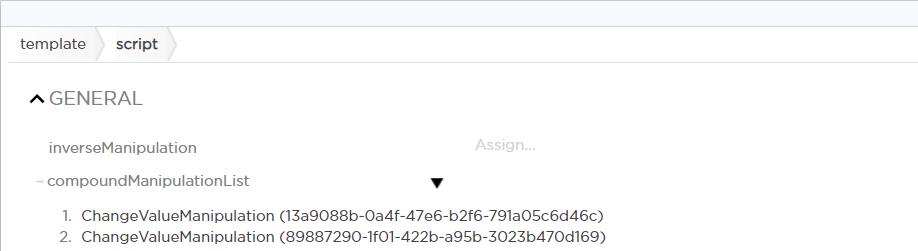
-
Your template is now ready. Commit your changes.
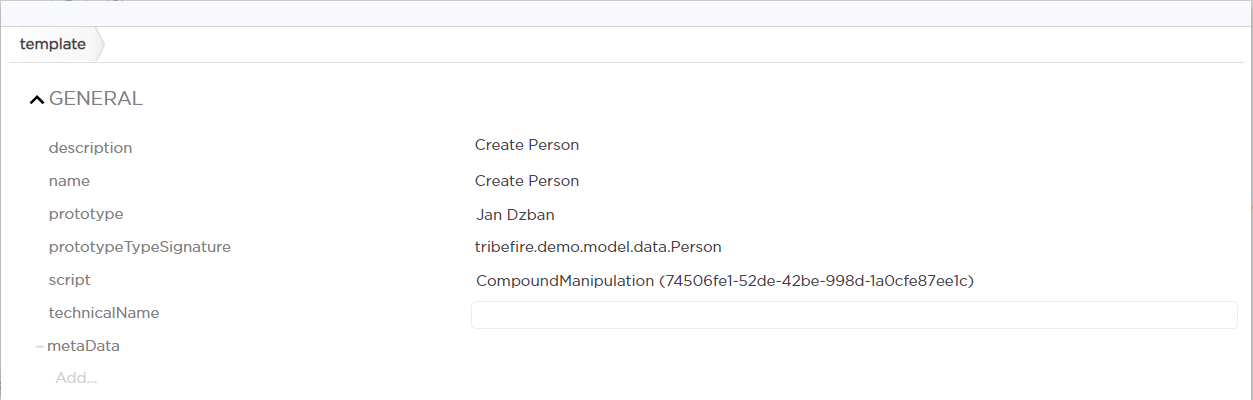
-
Find the
TemplateInstantiationActionquery in Quick Access.... Create a new instantiation action that creates a newPersonbased on your template (to achieve this, simply assign the previously configured template to the action). When committed, the action is available in Global Actions query in the workbench. -
Assign your instantiation action in the workbench. For more information, see Configuring Workbench
-
Once commited, your instantiation action should be available in the target access as assigned in the workbench. Try it out! The result should be a new instance of Person with a new
firstNameandcreateddate: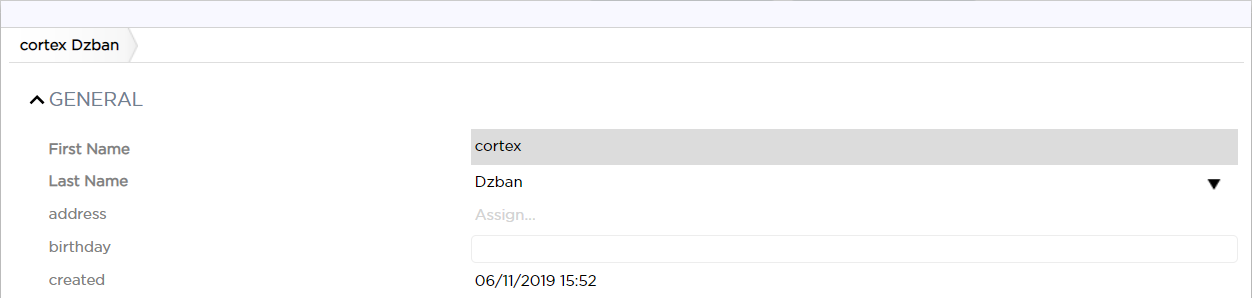
What's next?
Take a look at the available Value Descriptors, and think about how they could benefit your templates. Note that you are not limited to a single manipulation, as described above - you can create complex, compound manipulations just as easily.